How to Use WearTryOn: 11 AI Try-On Tools, Step by Step (2026 Guide)
Last spring I returned three jackets in one month. Each looked great on the model and wrong on me: the color washed me out, the shoulders were too boxy, or it simply was not my style. That is the problem WearTryOn is built for. You upload one photo and see clothes, hairstyles, glasses, hair color, makeup and even Halloween costumes on yourself before you spend anything.
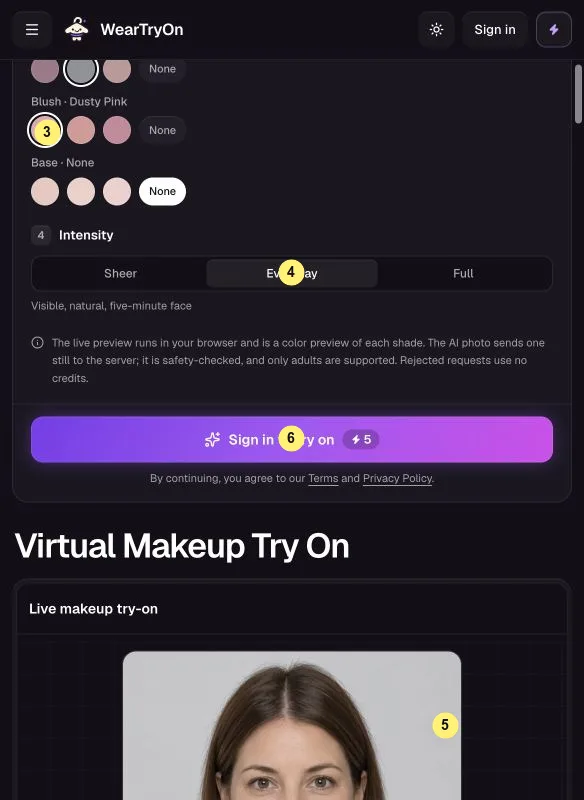
The site now has 11 tools, and a few of them look alike at first glance. So this post walks through each one with real phone screenshots. The yellow numbers in every screenshot match the numbered steps underneath, so you can follow along on your own phone.
Quick answer: which WearTryOn tool should you open?
Skip to the tool you need:
| If you want to… | Use this tool | Cost per result |
|---|---|---|
| Swap a single top, dress or jacket | AI Clothes Changer | 5 or 10 credits (Ava & Leo demos free) |
| Build a full look from separate pieces | Outfit Changer | 5 or 10 credits |
| Copy an outfit you saw in another photo | Outfit Swap | 5 or 10 credits |
| Decide between items in your shopping cart | Virtual Try On | 5 or 10 credits per item |
| See clothes on yourself through the camera | Live Try On | Live preview free |
| Test a haircut before the salon | Hairstyle Try On | 5 credits |
| Get an honest score on today's outfit | AI Outfit Rater | 1–3 free a day, then 1 credit |
| Pick new frames or sunglasses | Glasses Try On | Live preview free |
| Preview a dye shade | Hair Color Try On | Live preview free |
| Test lipstick, eyeshadow and blush | Makeup Try On | Live preview free |
| See yourself in a Halloween costume | Halloween Costume Generator | First costume free |
Three things to know before your first try-on
- The photo decides the result. One person, facing the camera, arms relaxed, in soft even light. Use your own photo or one the person agreed to share. A full-body shot is best for outfits; a clear head-and-shoulders shot works for hair, glasses and makeup.
- Credits are shown on the button. A new account starts with 10 free credits, a daily check-in adds 2 more, and if a generation fails the credits go back automatically. "Fast" costs 5 credits, "Standard" costs 10 and keeps more fabric detail.
- Live preview vs AI photo. The camera-based tools give you a free on-screen overlay, which is great for flipping through options quickly. The
Create AI photobutton makes a brand-new picture with realistic light and folds. Neither replaces a size chart, an eye exam or a colorist, but both narrow down your choices fast.
All screenshots below were taken on a phone while signed out, which is why some buttons read Sign in. On a laptop the layout spreads out, but button names and order stay the same.
1. AI Clothes Changer: try one new piece
This is the tool on the WearTryOn homepage, and the easiest place to start. It changes one garment and leaves everything else in your photo alone.
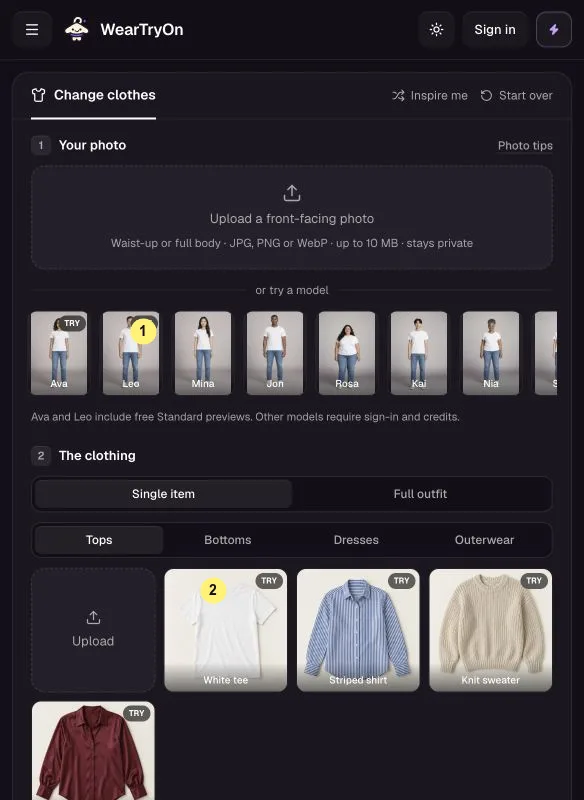
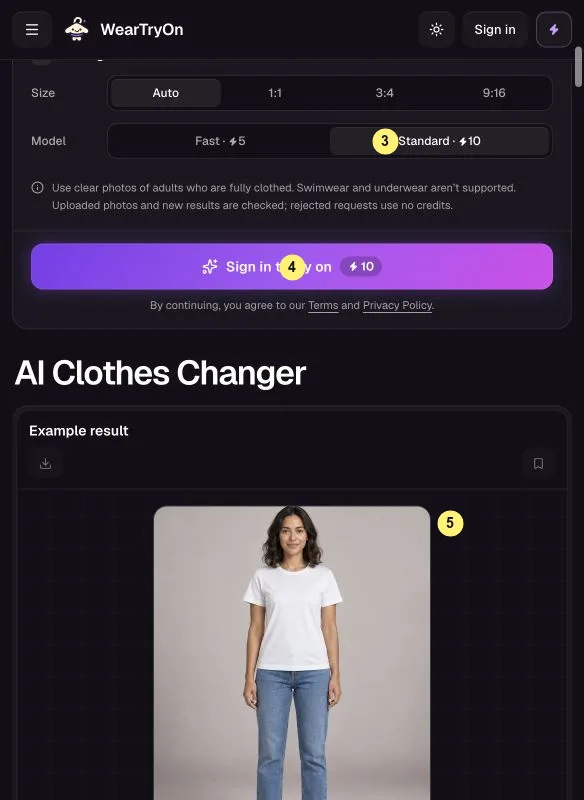
- Upload a front-facing photo under
Your photo, or tap a sample model like Ava or Leo (marker 1). - Leave the mode on
Single item, choose a category (Tops,Bottoms,DressesorOuterwear) and tap a garment (2). You can also upload a clear picture of something you found in a shop. - Pick the image size and
FastorStandard(3). Without an account, only the ready-made Ava and Leo results are available. - Tap
Change clothes(4). Drag the slider on the result (5) to compare before and after, then download it or save it toMy Closet.
My tip: if a result looks off, the photo is almost always the reason. Crossed arms, a bag strap or a second person in the frame confuse the model.
2. Outfit Changer: build a whole look
When one piece is not enough, the Outfit Changer dresses you in a full combination at once: top, bottoms and shoes.
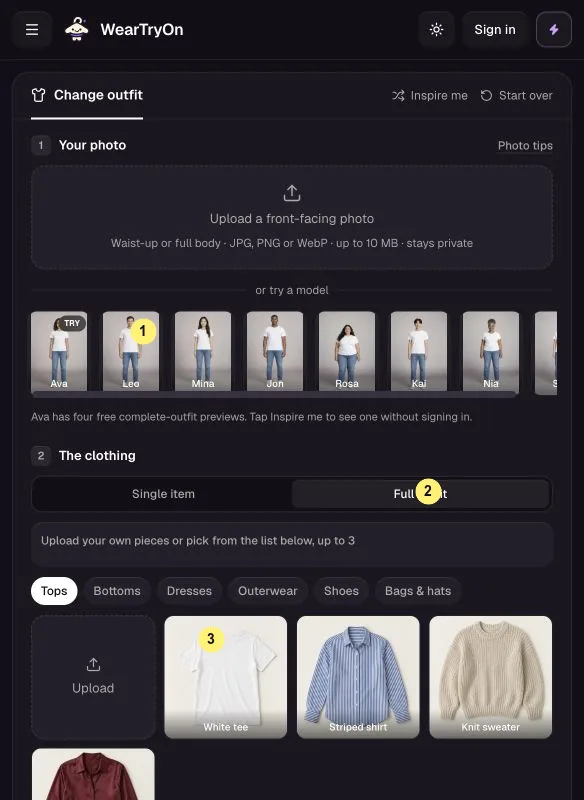
- Upload a photo or choose a sample model (1). Full-body photos make shoes and trouser length much easier to judge.
- The tool opens in
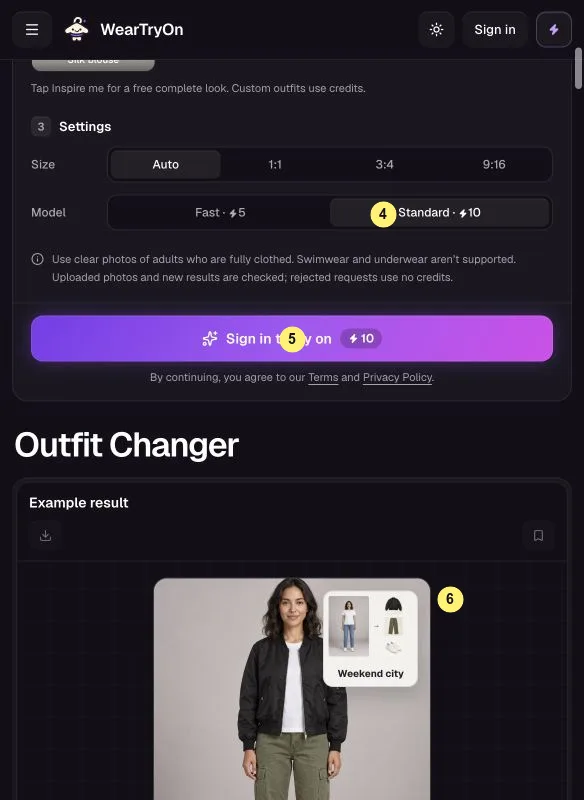
Full outfitmode (2). Pick up to three pieces by category (3). A dress automatically replaces the top and bottoms. Out of ideas?Inspire meloads a ready-made look. - Set the size and
FastorStandard(4), check the credit count, and tapChange my outfit(5). Your own combinations need a free account. - Compare before and after in the result area (6), then download or save the look.
My tip: choose shoes last. They shift the proportions of the whole outfit more than you would expect.
3. Outfit Swap: steal a look from another photo
Saw a street-style photo or a Pinterest pin you love? Outfit Swap takes two photos, you and the outfit, and puts that outfit on you.
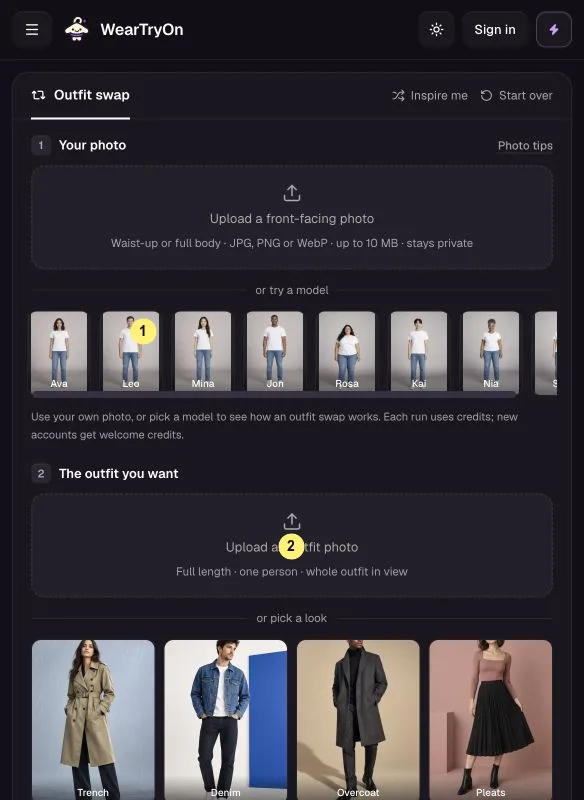
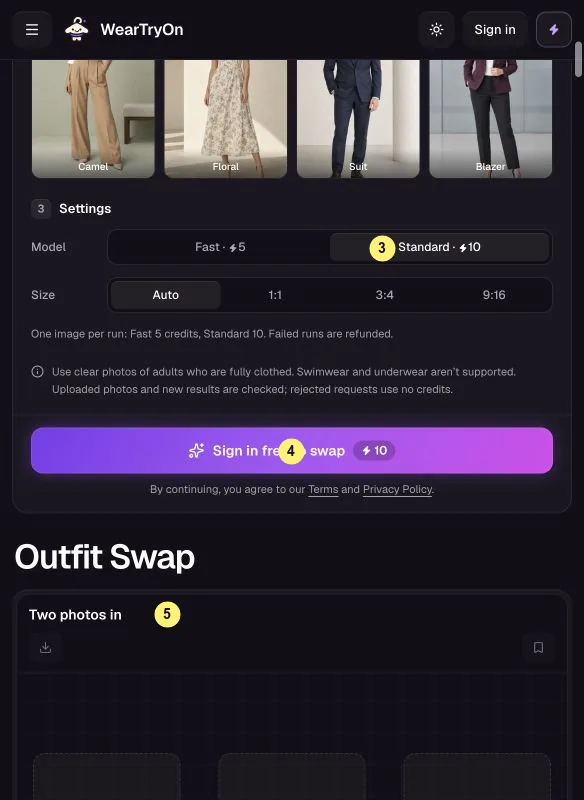
- Under
Your photo, upload yourself or pick a model (1). - Under
The outfit you want, add a photo of one person with the clothes and shoes fully visible (2), or choose a sample look. - Pick the size and
Fast(5 credits) orStandard(10 credits) (3). Once signed in, tapSwap outfits(4). - Compare the result with both originals (5). To try another look, replace only the second photo.
My tip: the second photo only donates the clothes. Your pose, face and background stay yours.
4. Virtual Try On: settle the "which one do I buy?" debate
This is the tool I use most while shopping. Virtual Try On puts up to three items you are considering on you, side by side.
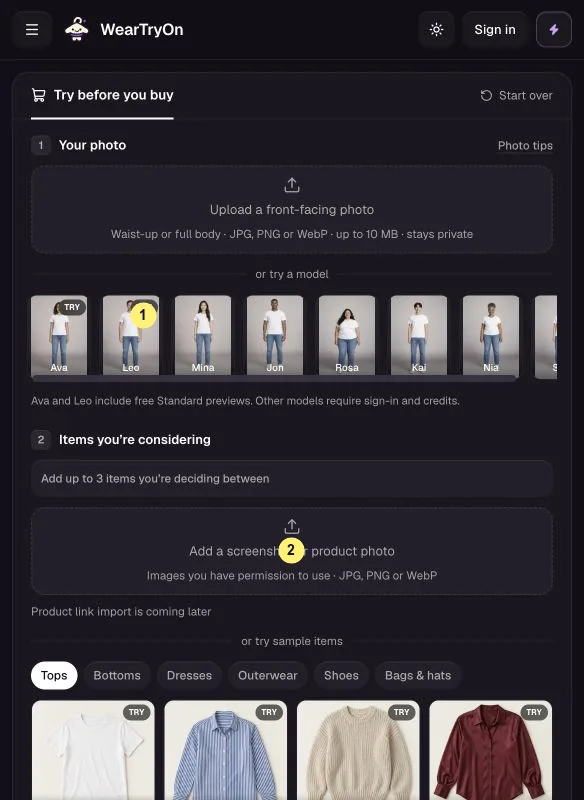
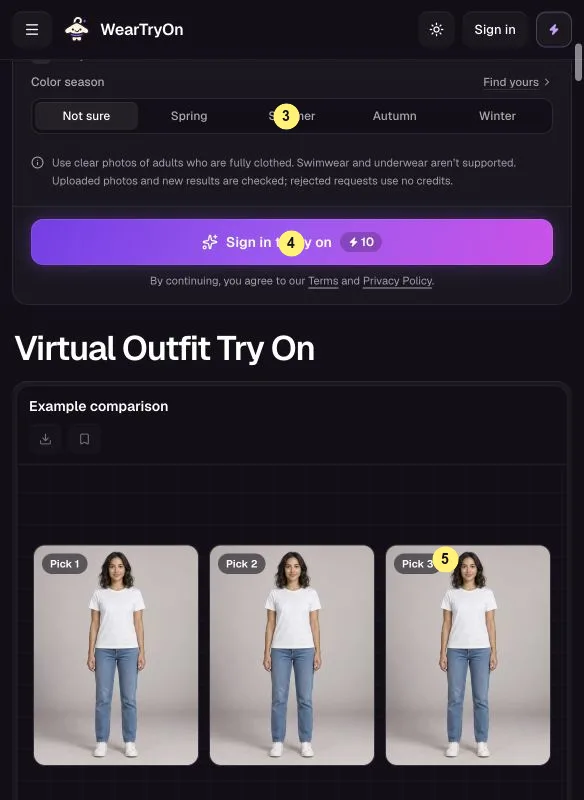
- Upload your photo or pick a model (1). Ava and Leo come with free previews of the sample tops.
- Add up to three candidates under
Items you’re considering(2), each with its category. Use product images; pasting a shop link is not supported yet. - Optionally set your
Color season(3). TapTry it onorTry on 3 items(4). Every new item is charged, and the button shows the total before you tap. - Review the results together in
All picks(5), switch toBefore / afterfor detail, and tapMark as my pickon the winner.
My workflow: screenshot each product page while browsing, crop to the garment, and drop the three images in here. It takes two minutes and has saved me at least one return.
5. Live Try On: clothes that move with you
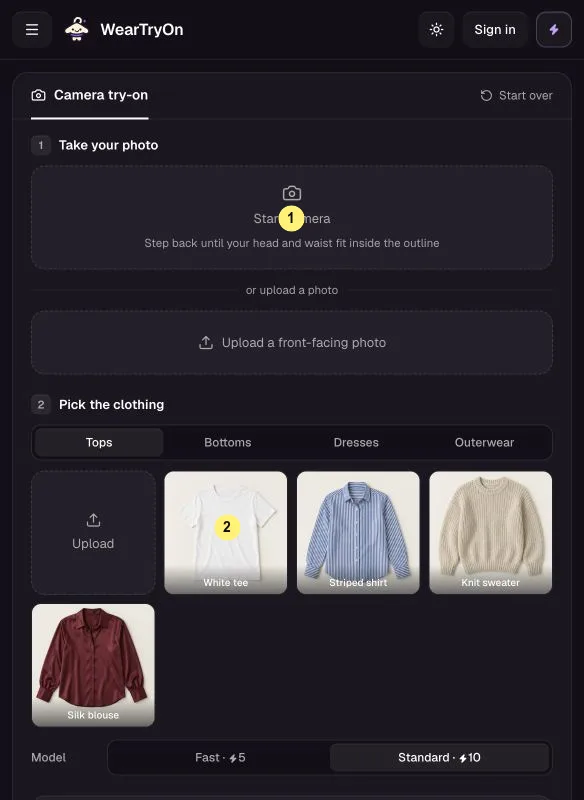
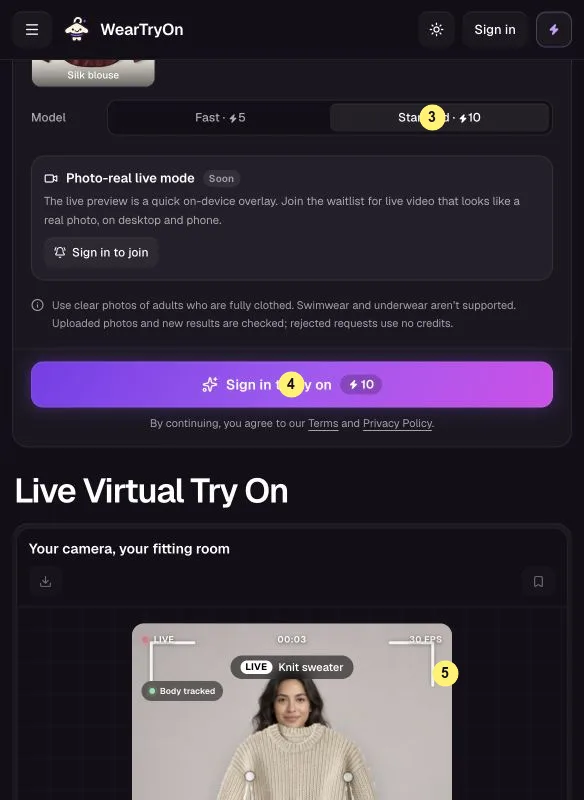
Live Try On works like a mirror: turn on your camera and preset tops and jackets follow you in real time. The live view is free.
- Tap
Start camera(1) and allow access, or upload a photo instead. Line up your head and waist with the on-screen outline. - Choose a preset top or jacket (2) to see it live. Clothes you upload are only used for the AI photo, not the live overlay.
- Set a countdown and tap
Take photo, orRetakeif you blinked. You can also switch cameras or mirror the view. - For a realistic picture with proper folds and lighting, pick
FastorStandard(3) and tapTry it on(4). This step needs an account. The short walkthrough is at (5).
Camera stays black? Your browser probably blocked it. Re-allow camera access for the site in your browser settings, or just upload a photo.
6. Hairstyle Try On: test the cut before the scissors
Bangs are a big commitment. Hairstyle Try On lets you test up to three new cuts on your own selfie first.
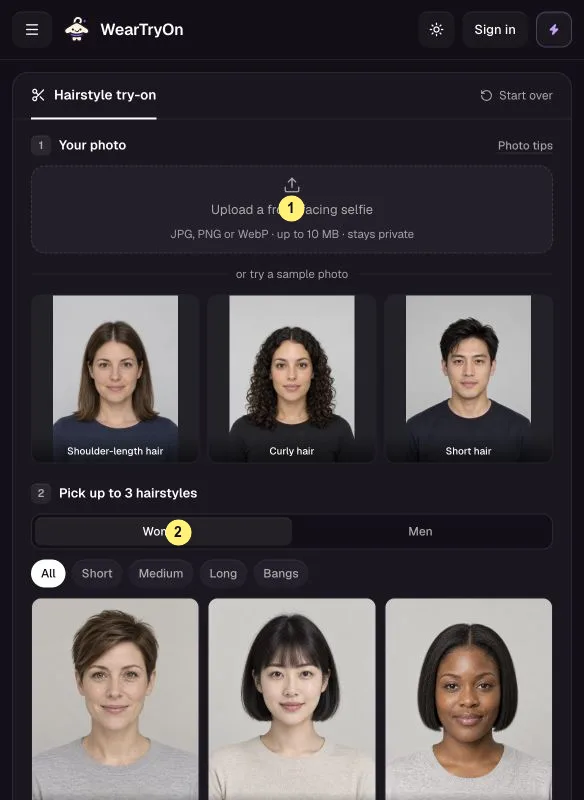
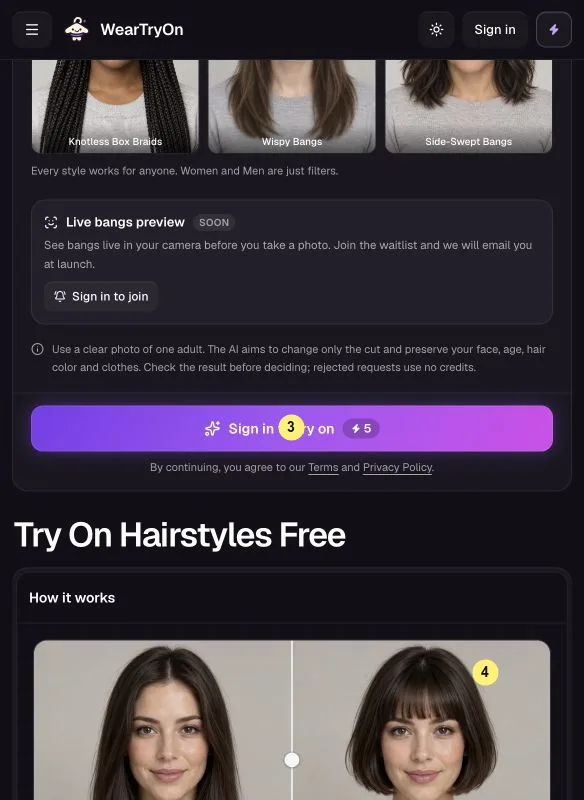
- Upload a clear, front-facing selfie (1) or pick a sample face. Skip hats and glasses. Your face shape is detected on your device, for free.
- Filter by
Women/Men, length and bangs (2). Every style is open to everyone. Pick up to three. - Signed in, tap
Try this hairstyleorTry 3 hairstyles(3). Each hairstyle photo costs 5 credits. - Compare the results (4) side by side or with
Before / after, then download your favorite to show your stylist.
My tip: push long hair behind your shoulders before taking the selfie. It gives the new style room to show.
7. AI Outfit Rater: a second opinion on demand
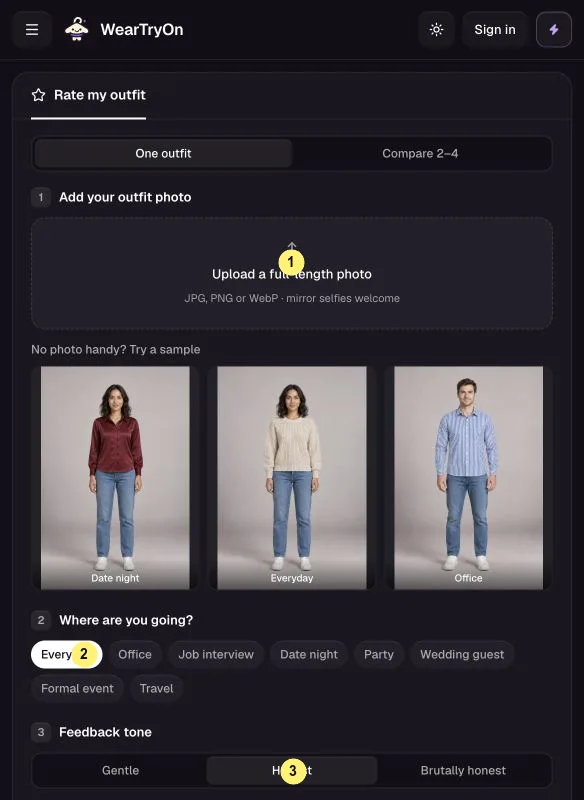
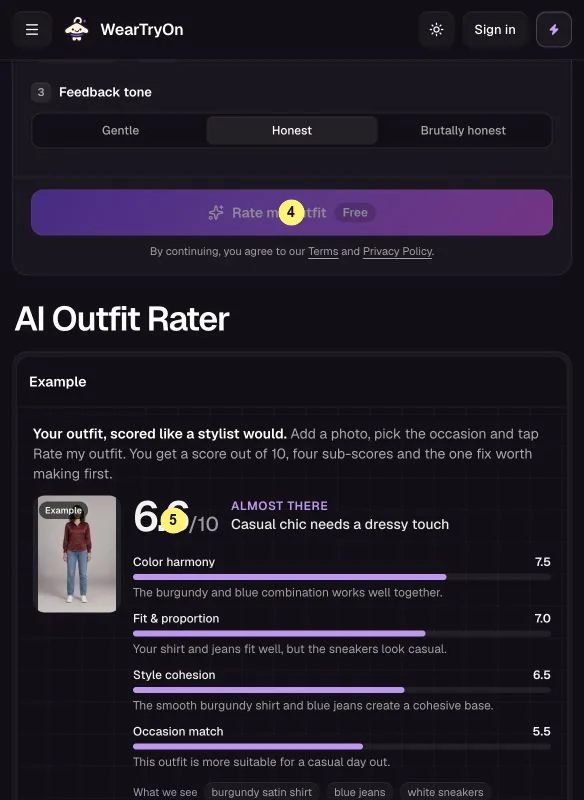
No friend around to ask "does this work?" The AI Outfit Rater scores your outfit and tells you the first thing to fix. You get one free rating a day without an account, three when signed in, and 1 credit each after that.
- In
One outfitmode, upload a photo of your outfit (1) or use a sample.Compare 2–4ranks several looks against each other and needs an account. - Choose the occasion (2), like
OfficeorDate night, and how blunt you want it (3):Gentle,HonestorBrutally honest. - Tap
Rate my outfitorCompare outfits(4). - Read the overall score, the four sub-scores (color, fit, cohesion, occasion) and the top fix (5). Signed-in ratings are kept in your
Style log.
My tip: shoot by a window in daylight against a plain wall. Otherwise the color score ends up judging your lamp.
8. Glasses Try On: frames on your actual face
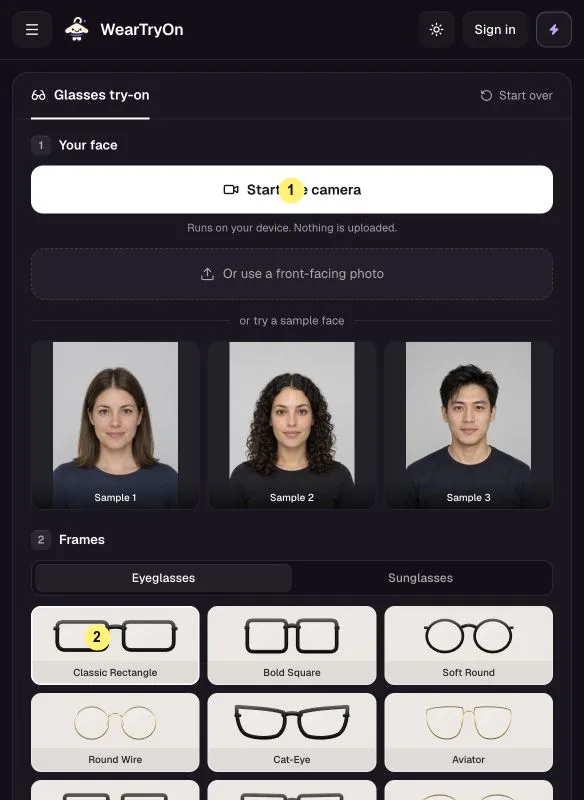
The Glasses Try On tool overlays frames live on your camera, free, and can turn a favorite into an AI photo.
- Tap
Start live camera(1), or upload a front-facing photo or pick a sample face. - Choose a frame under
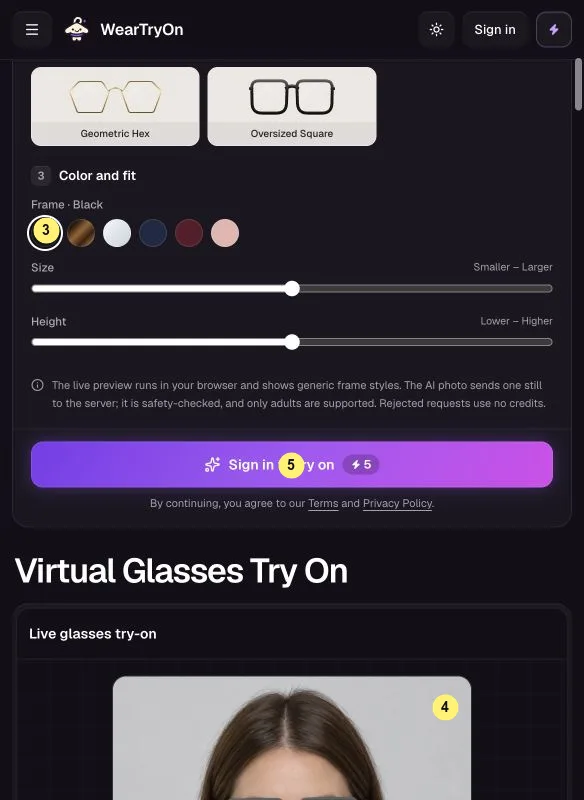
Frames(2), then fine-tune color, size and height inColor and fit(3). Sunglasses are in there too. - The live preview (4) costs nothing.
Snapshotsaves up to four looks, andComparelines them up. - For a realistic AI photo of you wearing the pair, sign in and tap
Create AI photo(5). It costs 5 credits.
Good to know: the Fit card estimates face shape, frame width and eye distance. Useful for shopping, but it does not replace an eye test.
9. Hair Color Try On: preview a dye shade
Thinking about copper, ash blonde or silver? Hair Color Try On paints 28 shades onto your hair live.
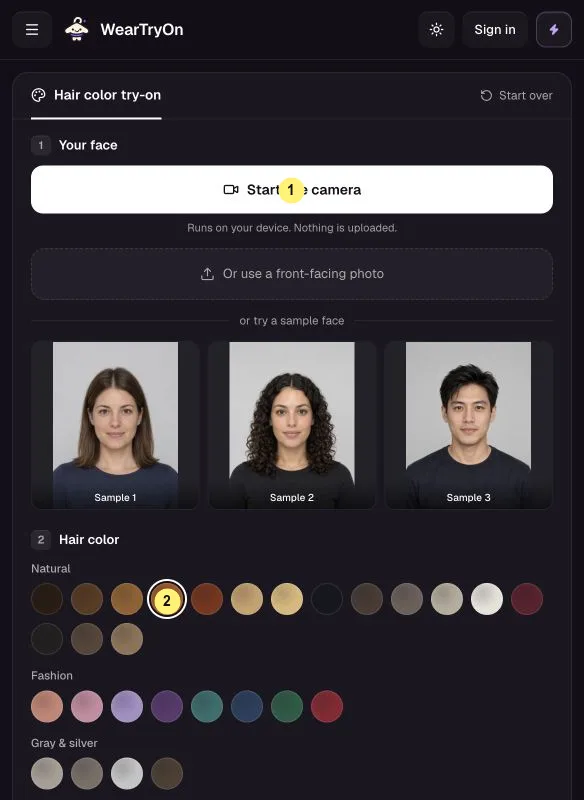
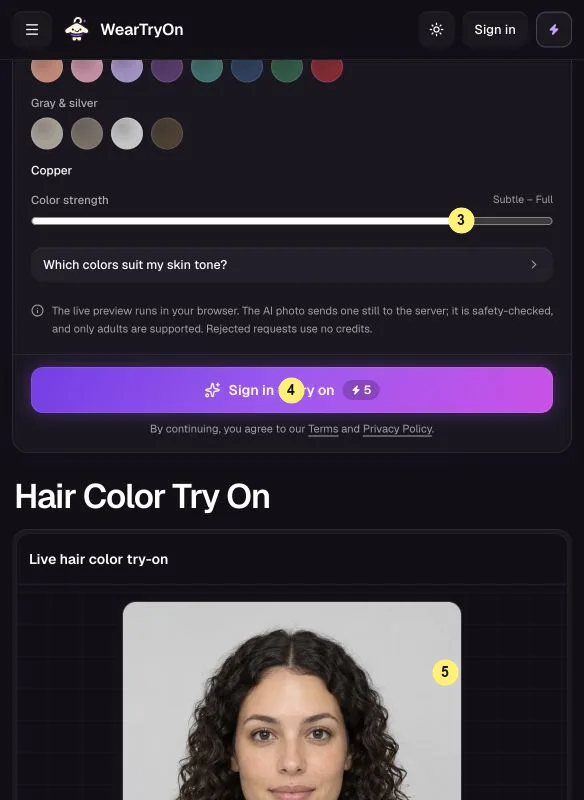
- Open the live camera (1) with your hair fully in frame, or upload a photo.
- Browse the
Natural,FashionandGray & silvergroups and tap a swatch (2). - Adjust
Color strength(3) and checkYour hair depth. Shades taggedBLEACHusually need lightening first, so plan for that. Snapshotkeeps up to four shades in the preview (5) for free. For a realistic photo, sign in and tapCreate AI photo(4), 5 credits.
My tip: snapshot one natural shade and one fashion shade, then compare them side by side. The contrast makes the decision much easier.
10. Makeup Try On: lips, eyes and blush
Makeup Try On is a quick way to test colors before buying a lipstick that ends up in a drawer.
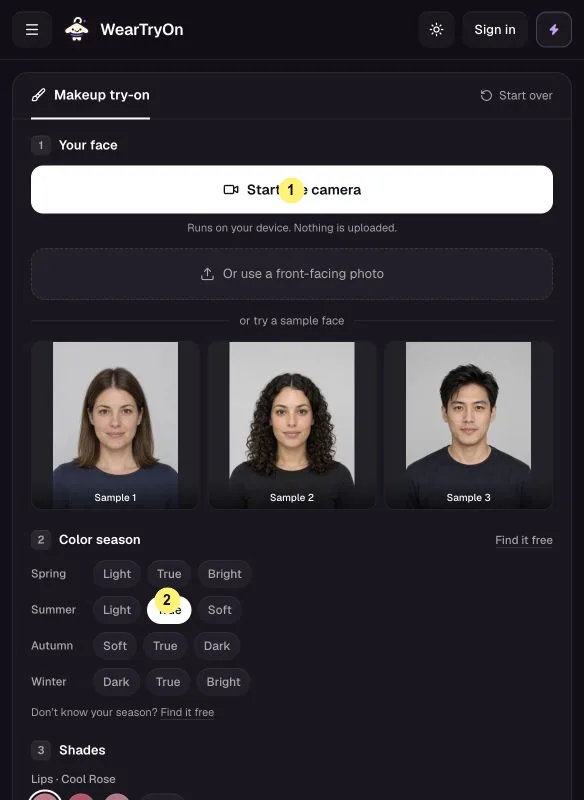
- Open the camera (1), or upload a front-facing photo or pick a sample face.
- Select your
Color season(2). Not sure what it is?Find it freeworks it out for you. - Pick shades for
Lips,Eyeshadow,BlushandBase(3), orNone. SetIntensity(4) toSheer,EverydayorFull. - Snapshot up to four looks in the live preview (5). For a polished AI photo, sign in and tap
Create AI photo(6), 5 credits.
My tip: start on Sheer. It is the closest match to how everyday makeup actually looks in daylight.
11. Halloween Costume Generator: costume first, shopping later
Just in time for October, the Halloween Costume Generator shows you in a costume before you order one. Your first costume is free, no account needed.
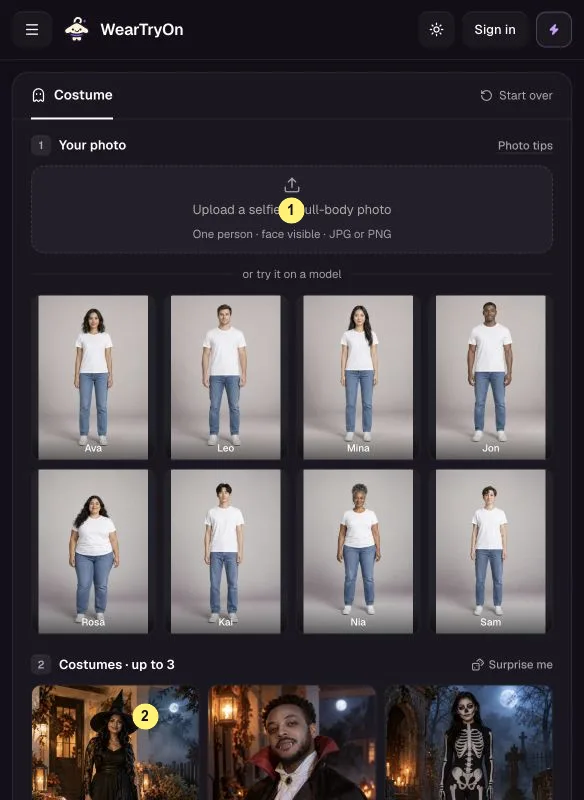
- Upload a solo photo with your face clearly visible (1), or pick a model. A full-body photo shows off the whole costume.
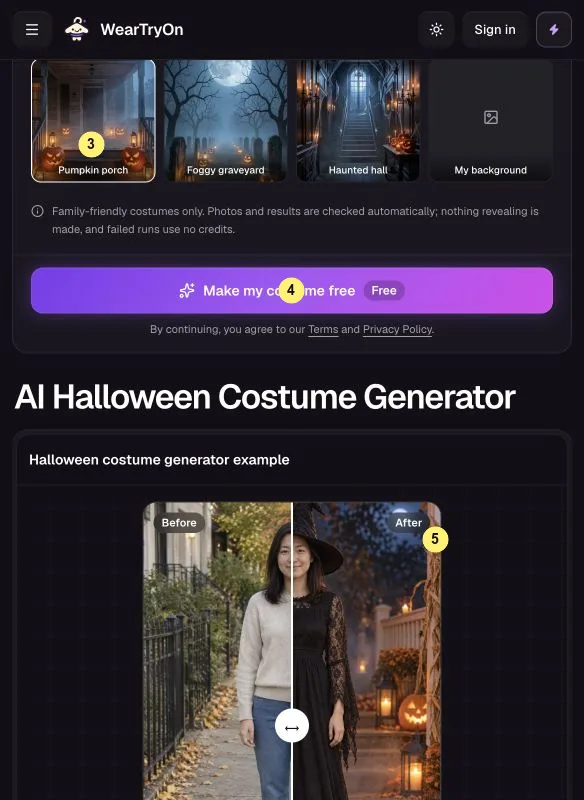
- Choose up to three of the 12 costumes (2), or let
Surprise medecide. Then pick aBackground(3) such as Pumpkin porch or Foggy graveyard, or keep your own. - Tap
Make my costume free(4). Extra costumes need an account and cost 5 credits each; the price is always on the button. - Compare results (5) side by side or with
Before / after. Signed in, you can save a costume and send friends a link to vote on the best one.
My tip: make three costumes, save them and share the voting link in your group chat. It ends the "what are we going as?" debate quickly.
Credits, saving and your history
Samples and live previews work without signing in. Creating a free account unlocks your own photos and adds 10 credits, and checking in once a day adds 2 more. Everything you save lands in My Closet, and every generation is listed in History, so you can come back to a look later. If you run out, the WearTryOn plans and credit packs also remove the watermark from your results.
On safety: WearTryOn is family-friendly. It only swaps clothes for clothes, photos are checked automatically, and very revealing results are turned down.
FAQ
Why is the generate button grayed out?
Something required is still missing, usually the photo or the item (clothes, hairstyle, frame or costume). Camera tools also need exactly one face toward the camera, and a few actions need you to sign in.
My photo upload failed. What now?
Use a clear JPG, PNG or WebP of one person facing forward. Group photos and very revealing outfits are rejected by the safety check.
Will the item look exactly like this in real life?
Close, not identical. The results are great for comparing color, style and overall vibe, but still read the size chart and fabric details before you buy.
Do I lose credits if something goes wrong?
No. When a generation fails, its credits are returned to your balance automatically.
Where can I find the official instructions?
The WearTryOn help center has the same step-by-step guides and is updated whenever a tool changes. For anything else, the support page gets you an email reply.
Wrapping up
If you only try one thing, start with the AI clothes changer on the homepage and the free Ava or Leo demo. It takes about 30 seconds and shows you what the rest of the tools can do. Then bookmark Virtual Try On for your next online shopping session.
Which tool would you use first? Tell me in the comments, and if you try one, I would love to hear how your result turned out.


Comments
Post a Comment